ContainerDesk

Linux containers on your Mac, in a native app.

Built on Apple’s container runtime. Run, inspect and clean up containers with live CPU and memory, merged logs and a shell in any of them.

Free and open source. Released 31 October 2026. Needs Apple’s container CLI 1.5.0, macOS 26 and an Apple silicon Mac. The first launch needs one extra step.

ContainerDesk’s Containers screen: seven storefront containers with CPU and memory rings, and storefront-db selected with its details below

Why ContainerDesk

Your whole runtime in one window

Containers, images, volumes, networks, registries, machines, builds, Compose and Kubernetes, in searchable native tables with details inline.

Work with a whole project at once

Group related containers into a stack, or save one that ContainerDesk discovers from project labels. See the stack’s status, CPU and memory together.

  • Start, stop or restart every member at once
  • Removing a member keeps the container and its data
The storefront stack: five running containers and one stopped, with combined CPU and memory and each member’s image, ports and usage

See what every container is using

Each container shows CPU and memory against its configured limits. Its Stats tab charts up to 60 minutes of history, collected while ContainerDesk is open, with restarts, exits and limit changes marked.

Usage ring colours

Under 70%
Blue ring
70% and up
Amber, marked Elevated
90% and up
Red, marked High
  • Optional alerts for unexpected exits and high usage, off until you turn them on
Stats for storefront-api: CPU and memory charts over the last 15 minutes, with a marker and event entry where the container restarted

Every container’s logs in one console

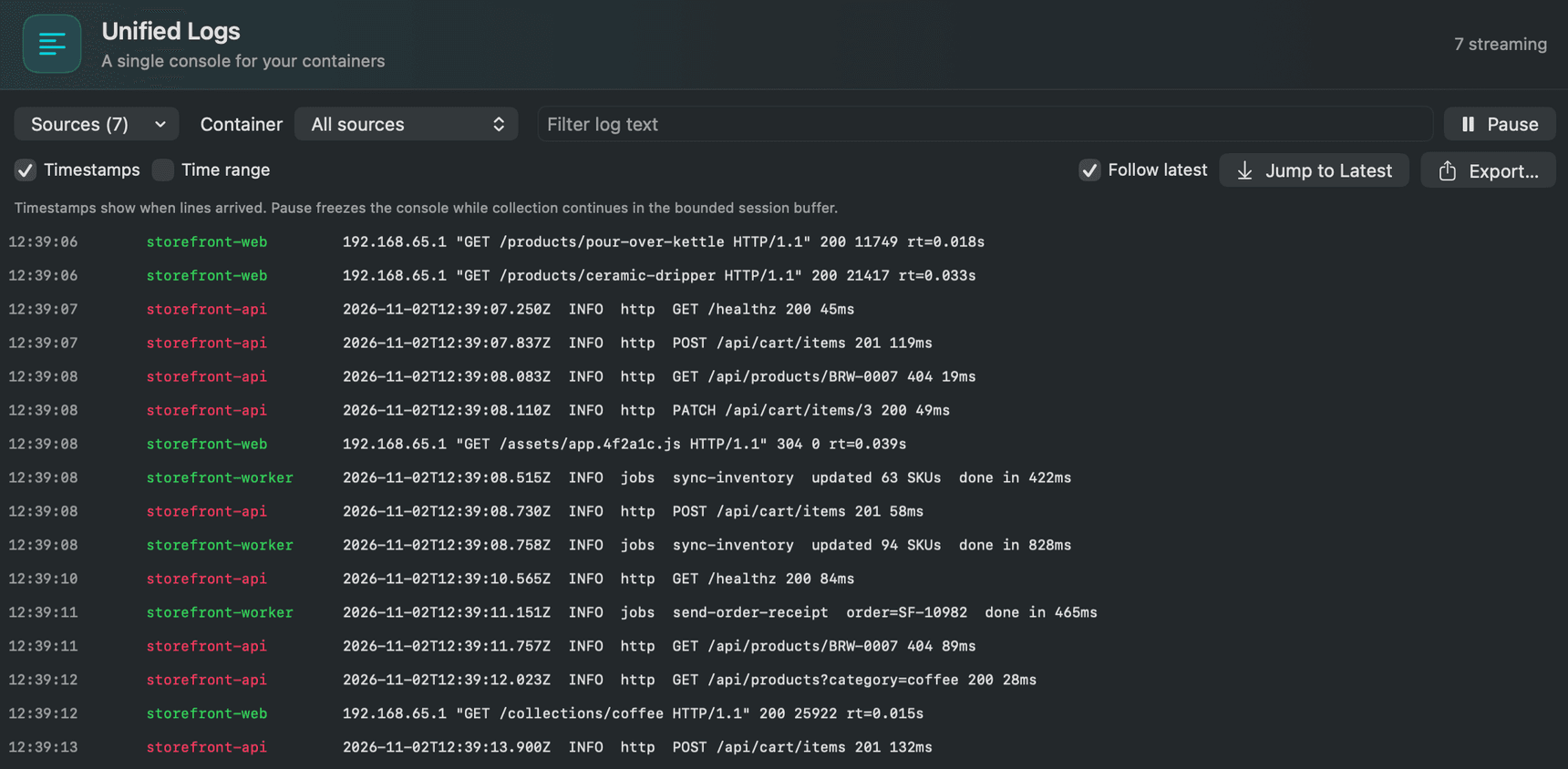
Unified Logs merges container streams with a colour per source. Filter by source or text, pause without losing lines, and jump back to the latest.

  • Shift-click to select lines, or set a time range, then export just that
Unified Logs interleaving lines from storefront-web, storefront-api and storefront-worker, each source in its own colour

A shell in any running container

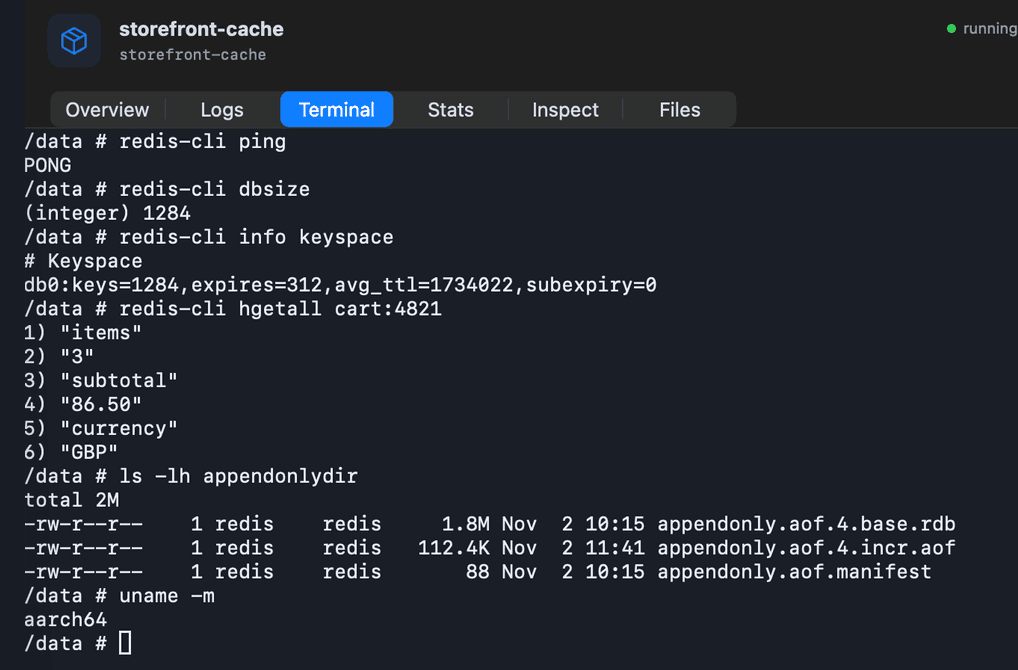
Open an interactive terminal next to the container’s Logs, Stats, Inspect and Files tabs. Sessions stay open while you move around the app.

  • List, copy and export files from the Files tab
A shell inside storefront-cache running redis-cli commands

Clean up without surprises

Cleanup finds unused containers, images, networks and volumes and shows why each one qualifies. Nothing is removed until you choose Remove Selected.

  • Volumes hold data, so they’re never selected for you
  • Each item is checked again and removed one at a time, never with a bulk prune
Cleanup’s unused resources: two stopped containers and two unused images selected for removal, each with the reason it qualifies

Run a local model next to your containers

ContainerDesk finds MLX models in your Hugging Face cache, serves one on 127.0.0.1 with an OpenAI-compatible endpoint, and lets you chat with it. Conversations stay in memory on your Mac.

  • Needs a Python environment with MLX-LM 0.32.2 and Hugging Face Hub, installed separately
  • Models download only when you ask
Llama 3.2 3B Instruct served locally, with a question about Redis and the model’s answer in the Chat tab

Also in ContainerDesk

Images and registries
Pull, push, tag, save and load OCI images, or run one straight from its details.
Environment profiles
Save an image with its ports, mounts, limits and environment files, then review and run it again later.
Edit limits
Change a container’s CPU and memory. ContainerDesk backs up its disk and recreates it with the same settings. It restarts, so open connections and in-memory state are lost.
Builds and Compose
Build with BuildKit, and bring Compose projects up and down through the installed plugin.
Kubernetes
Create and manage local clusters through the installed experimental plugin.
System and Activity
Start and stop the runtime service, check disk use and DNS, and review every operation you started.

Screenshots show a demo storefront stack on Apple container 1.5.0, and Llama 3.2 3B served by MLX-LM 0.32.2.

The CLI stays in charge

Actions run through Apple’s container CLI, so anything you do in ContainerDesk you could also type in Terminal. Activity records each one with its timing and exit code.

Some read-only views, like lists and live stats, read Apple’s native API for speed.

App actions and the commands they run
In ContainerDeskRuns
Start the runtime servicecontainer system start
Pull an imagecontainer image pull redis:7
Restart a containercontainer stop storefront-api container start storefront-api
Remove a stopped containercontainer delete storefront-migrate

Safe by default

Browse freely. ContainerDesk only changes what you choose to change.

  • You confirm anything destructive

    Deletes are confirmed and scoped to exactly what you selected.

  • Secrets stay out of view

    Environment values are redacted from command previews and output.

  • Output isn’t kept

    Activity saves each command, its timing and exit code. Output stays in memory.

  • Your containers outlive the app

    Quitting stops ContainerDesk’s own terminals, log streams and model servers. Containers keep running.

Get started

Four steps.

  1. Install Apple’s container CLI

    Get version 1.5.0 or a compatible release from its releases page or Homebrew, then start its system service.

    container system start
  2. Download ContainerDesk

    v1.3.0 for Apple silicon, as a disk image or a zip. Each comes with a SHA-256 checksum on the release page.

  3. Check the download

    Keep the download and its .sha256 file in the same folder, then run:

    shasum -a 256 -c ContainerDesk-v1.3.0-macos-arm64.dmg.sha256
  4. Open the app

    Builds are signed ad hoc and aren’t notarized, so macOS may block the first launch. If you trust the download, try opening it once, then choose Open Anyway in System Settings → Privacy & Security. Managed Macs may not allow this. Apple explains how.

Or build it from source

You’ll need Swift 6.2 or newer. The script builds the app and opens it.

git clone https://github.com/MacHatter1/ContainerDesk.git
cd ContainerDesk
CONTAINERDESK_BUILD_CONFIGURATION=release ./script/build_and_run.sh

Questions

Something else? Ask on GitHub.

Does ContainerDesk replace the container CLI?

No. You need Apple’s container CLI 1.5.0 or a compatible release, with its system service started. Actions in ContainerDesk run through that CLI; some read-only views, like lists and live stats, read Apple’s native API for speed.

Which Macs does it run on?

Apple silicon Macs running macOS 26 or later.

Can I use images from Docker Hub?

Yes. Apple’s runtime pulls standard OCI images from Docker Hub and other registries. Images built for arm64 run natively on Apple silicon.

Why does macOS warn me when I open it?

Builds are signed ad hoc and aren’t notarized by Apple, so macOS may block the first launch. If you trust the download and have checked its checksum, open it once, then choose Open Anyway in System Settings → Privacy & Security. Managed Macs may not allow this. Apple explains how.

Does it update itself?

No. New versions are published on GitHub Releases with notes and checksums.

Does it collect any data?

No. ContainerDesk has no analytics or telemetry. It talks to your local runtime and to model servers on your Mac, and only goes online for things you start, like pulling an image or downloading a model.

How do I uninstall it?

Quit it and move it to the Trash. Its settings live in ~/Library/Application Support/ContainerDesk and its preferences. Your containers, images and volumes belong to Apple’s runtime and stay put. If you’ve used Edit Limits, keep the LimitsRecovery folder while those containers exist.

Is ContainerDesk made by Apple?

No. It’s an independent open-source project and isn’t affiliated with or endorsed by Apple.